The Complete Guide to OpenHR: Free Open Source HR Software That Actually Works
The Complete Guide to OpenHRApp: Features, Setup, and Daily Workflows
Look, I get it. You've probably spent hours Googling "free HR software" and every result either wants your credit card after five users or looks like it hasn't been updated since Windows XP was cool. I was in the same boat when I started working on OpenHR.
Here's what happened: a friend of mine runs a garments factory outside Dhaka with about 200 workers. He was tracking attendance on paper. Paper! In 2026. Workers would sign a register, someone would manually type it into Excel at the end of the week, and payroll was always a mess because nobody could agree on who showed up when. He asked me if there was something cheap that could fix this. I looked around, and honestly? Nothing fit. The enterprise tools wanted $8 per user per month (do the math on 200 employees), and the free ones were either half-broken or required a PhD in DevOps to set up.
So we built OpenHRApp, powered by Supabase for database, auth, and file storage. And after running it in production for a while now, I figured it was worth writing down everything it does and how to actually get it running, because the README only tells half the story.
Why We Didn't Just Use BambooHR or Zoho
People ask this a lot, so let me get it out of the way.
The setup is dead simple. Most open source HR platforms need Docker, PostgreSQL, Redis, Nginx reverse proxies, SSL certificates... you get the idea. OpenHRApp runs on Supabase, an open-source Firebase alternative. Create a free Supabase project, run one migration, and your entire backend — database, authentication, file storage — is ready. No Docker, no PostgreSQL config, no reverse proxies needed.
Your data stays yours. This was non-negotiable for us. Employee selfies, GPS locations, salary information, national ID numbers — this stuff shouldn't sit on someone else's server. OpenHR is fully self-hosted. You run it on your own machine or your own cloud VPS, and nobody else touches your data. For companies in Bangladesh, the Middle East, or anywhere with strict data residency rules, this was a big deal.
It's actually free. Not the "free for 5 users" kind of free. Not the "free but you can only track attendance and everything else is premium" kind. Every feature works. There's an ad-supported mode after the trial if you don't want to pay anything, and honestly the ads are pretty unobtrusive — small banners in the sidebar, nothing during clock-in or clock-out.
What Does OpenHRApp Actually Do? A Walkthrough of Every Feature
Let me walk through the major features, because "HR software" can mean a hundred different things.
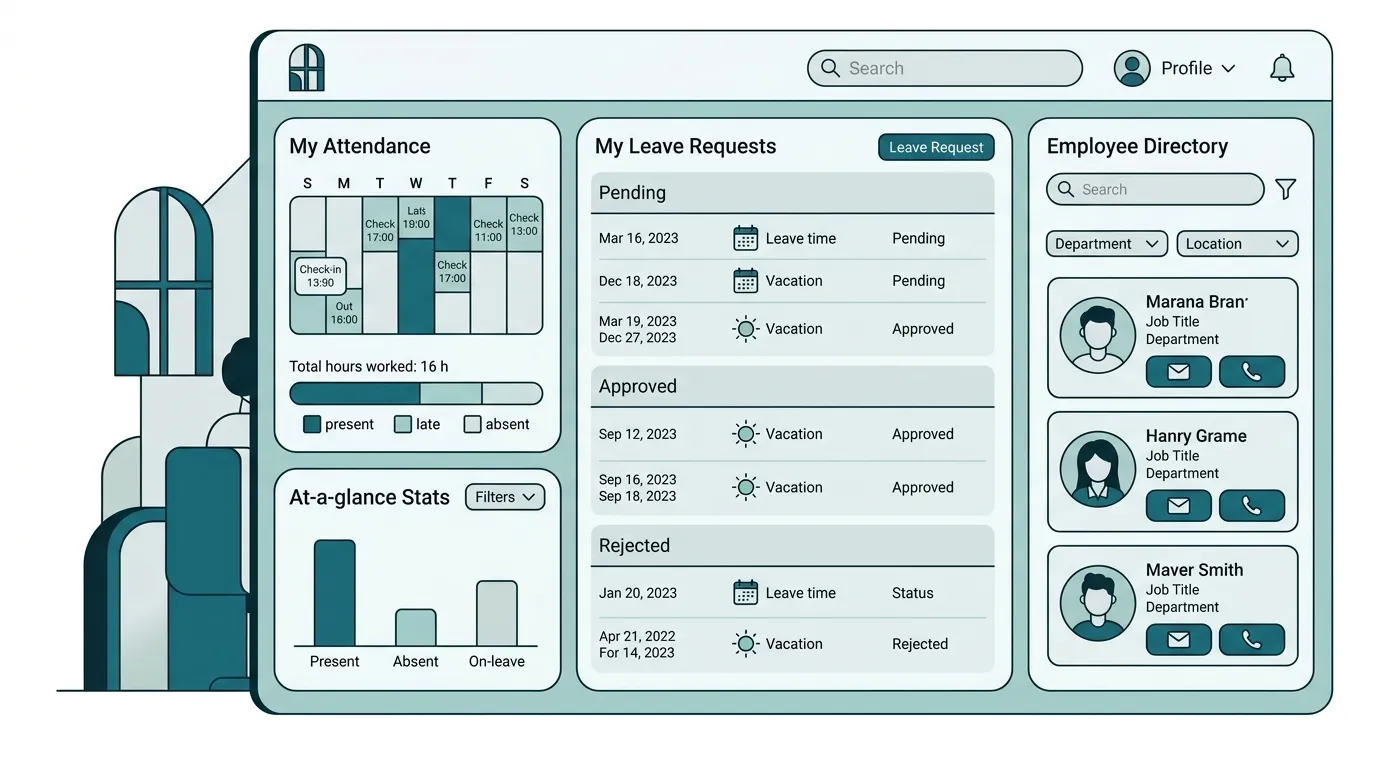
Selfie-Based Attendance with Photo and GPS Proof
This is the one feature people always want to talk about first, and I think it's because it solves a problem that drives every factory and office manager crazy: buddy punching.
You know the drill — Ahmad tells Rafiq "hey, punch in for me, I'm running late" and suddenly your attendance data is fiction. With OpenHR's biometric selfie verification, that trick doesn't work anymore. Every clock-in captures a selfie from the front camera. You can literally see who punched in. It's dead simple and it works without any special hardware — no fingerprint scanners, no face recognition servers, just a phone camera.
But the selfie is only half of it. The GPS and location verification system runs alongside the camera. When someone hits "Check In," OpenHR grabs their GPS coordinates and matches them against your office geofences. Set up your office at lat/lng with a 200-meter radius, and the system automatically tags whether the employee was inside or outside that zone. If they're outside all your defined locations, it falls back to OpenStreetMap reverse geocoding and records the street address instead.
We built two duty modes because one size doesn't fit all. Office mode is your standard 9-to-5 setup. Factory mode (or Field mode — same thing) is for employees at job sites, construction zones, or satellite offices, and it forces them to write remarks about what site they're working at. That distinction turned out to be surprisingly useful for our factory friend, because now his site supervisors can see at a glance who's at which location.
Oh, and there's an auto-close thing that saved us from an embarrassing amount of "I forgot to clock out" tickets. If someone forgets to check out, the system closes their session automatically at a time you configure. No more employees showing 18-hour workdays because they forgot to tap a button.
For the full breakdown of how the attendance tracking system works end to end, including shift integration and late calculations, there's a detailed page on the site.
Leave Requests That Actually Route to the Right Person
I'll be honest — leave management was the feature I was least excited to build, because every HR system has it, and I thought "how hard can it be?" Turns out, pretty hard if you want it to work the way real companies actually operate.
The basic flow is straightforward: employee picks a leave type (Annual, Casual, Sick, Maternity, whatever), selects dates, writes a reason, hits submit. But then what? In some departments the manager approves first, then HR does final sign-off. In other departments — maybe a small team where the manager is also HR — it goes straight to the admin. And some companies skip the manager step entirely for certain leave types.
We handle all of this with per-department workflow configuration. You go into Organization settings, pick a department, and tell it "this department's leaves should route to HR directly" or "this one needs manager approval first." The system figures out the rest. If an employee doesn't have a line manager assigned, it skips that step automatically instead of getting stuck in limbo forever.
Leave balances track themselves. You set defaults — say, 15 annual days, 10 sick days, 7 casual days — and as requests get approved, the balances deduct. You can override per employee too, which is handy for senior staff with negotiated leave packages.
Every status change fires a notification. Employee submits? Manager gets a bell and an email. Manager approves? Employee gets notified and HR gets a "ready for your review" ping. It sounds obvious, but I've used systems where you'd submit a leave request and then have to physically walk to your manager's desk to tell them to check their inbox. Not great.
Performance Reviews That Don't Make Everyone Miserable
Nobody loves performance reviews, but they're a reality, and OpenHR's performance review system tries to make them as painless as possible.
It's a three-step process: the employee does a self-assessment, their manager adds their evaluation, and HR finalizes everything. Each step uses competency ratings on a 1-to-5 scale. The default competencies are things like Agility, Collaboration, Customer Focus, but you can change them to whatever makes sense for your company. A software company might add "Code Quality" and "Technical Leadership." A sales org might want "Client Retention" and "Pipeline Management."
Here's the part I'm actually proud of: the system automatically pulls attendance and leave data for the review period and shows it right on the review form. So when a manager is evaluating someone, they can see — right there on the same screen — that this employee had 3 late arrivals and took 8 sick days during the quarter. Or that another employee had perfect attendance and zero unplanned absences. It removes the guesswork and the "well, I feel like they were late a lot" bias. The data is just there.
Review cycles have proper lifecycle management too. HR creates a cycle with start and end dates, and the system handles transitions. Reminders go out when deadlines approach. If someone hasn't submitted their self-assessment three days before the deadline, they get a nudge.
An Employee Directory That's More Than a Phone Book
The employee directory might seem boring on the surface — it's a list of employees, right? — but the role-based access control is where it gets interesting.
OpenHR has five roles: Admin, HR, Manager, Team Lead, and Employee. What each role can see is carefully scoped. An Admin or HR person sees the entire organization. A Manager sees their team members and direct reports. A Team Lead sees their specific team. An Employee sees only their teammates — peers in the same team.
This scoping applies everywhere, not just the directory. When a Manager opens the attendance audit page, they only see their team's records. When they open the leave section, they only see requests from their reports. It's not just UI filtering either — the API enforces it, so even if someone messed with the frontend code, they couldn't pull data they shouldn't see.
For admins, the directory is also where you provision new user accounts. You fill in their details, assign a department and designation, put them on a team, pick their shift, and they get login credentials. There's also CSV and PDF export now, which is handy for annual reports or when finance needs a current headcount by department.
Reports You Can Actually Hand to Your Boss
The reports and analytics section is built for one thing: getting data out of the system in a format that's useful.
You pick a date range, optionally filter by department or team, and generate attendance or leave reports. The data shows up in a table you can sort and filter, and then you export it as CSV for Excel or as a branded PDF with your company logo, summary stats, and proper page numbers. That PDF thing sounds minor but trust me — the first time an HR manager needs to email an attendance summary to the CEO, having a properly formatted PDF with the company logo on it makes them look good.
The reports pull from actual punch data, so they're accurate down to the minute. Late arrivals are calculated against the employee's assigned shift and grace period, not some arbitrary global threshold.
How to Get OpenHRApp Running (The Honest Version)
I'm going to give you the actual setup steps, not the marketing-sanitized version.
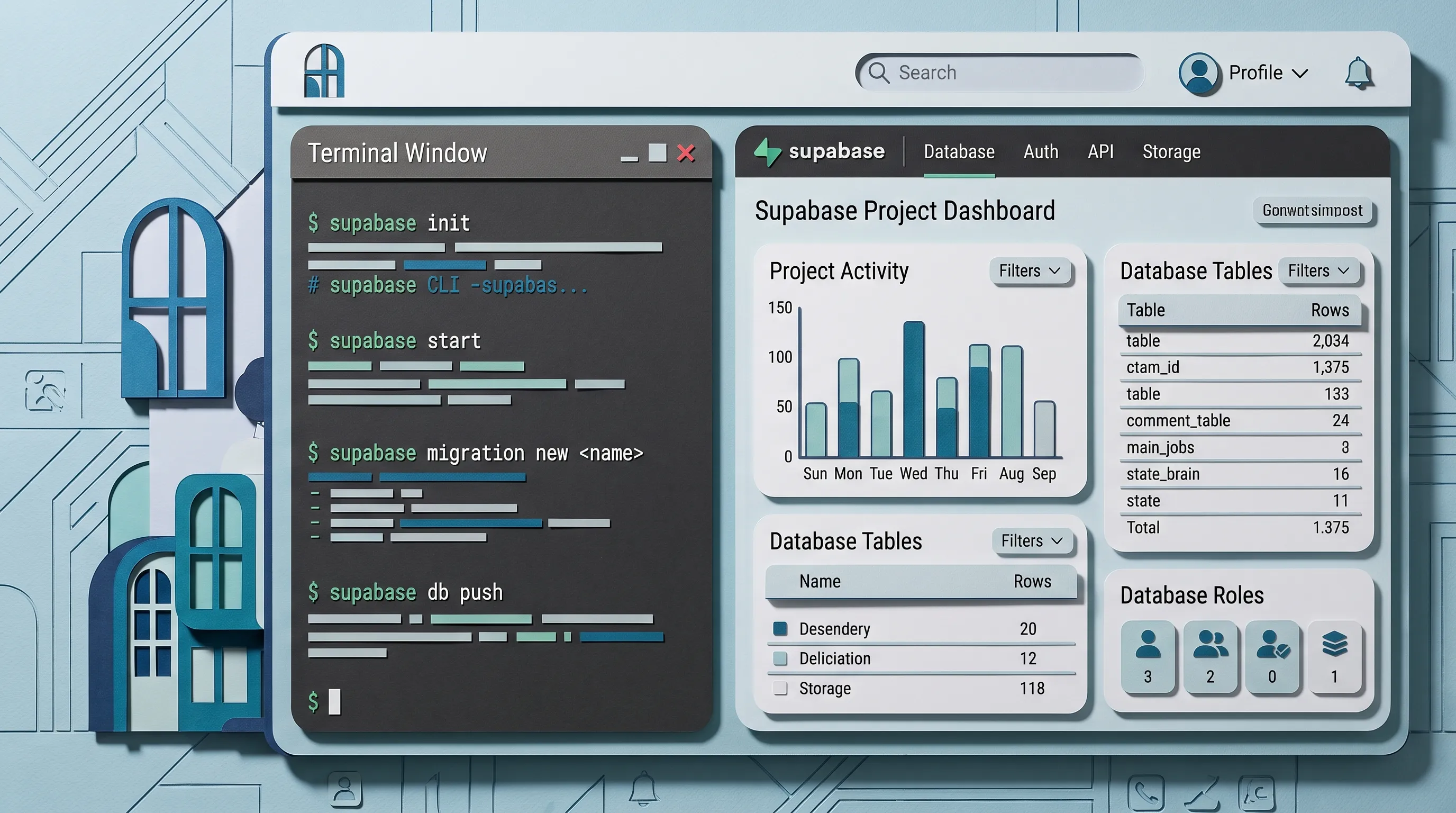
Step 1: Set Up Supabase
OpenHRApp uses Supabase as its backend. Create a free account at supabase.com and start a new project (takes about 2 minutes). Go to Project Settings → API and copy your project URL and anon key.
Then, in your local clone of the repo:
npx supabase link --project-ref your-project-ref
npx supabase db push
This applies all migrations — tables, indexes, Row-Level Security policies, triggers, and cron jobs are configured. If you prefer self-hosting, Supabase can be deployed via Docker on your own server.
Total time: about 5 minutes.
Step 2: Run the Frontend
git clone https://github.com/mimnets/OpenHRApp.git
cd OpenHRApp
npm install
npm run dev
That gives you a dev server on http://localhost:3000. For production, run npm run build and throw the dist/ folder on any static host — Vercel, Netlify, a $5 DigitalOcean droplet with Nginx, whatever you've got.
Step 3: Connect and Register
First launch, the app connects to your Supabase backend automatically via your environment variables. Register your organization — company name, country, logo, your admin email and password — and you're in.
Step 4: Set Up Your Organization Structure
Before you start adding people, spend 15-20 minutes configuring things. This is the part that pays dividends later:
- Departments and Designations — Add your actual department names and job titles. Don't overthink this; you can always add more later.
- Teams — Create teams and assign team leaders. This drives the manager visibility and leave routing.
- Office Locations — Add your office coordinates for GPS geofencing. Open Google Maps, right-click your office, copy the lat/lng, set a reasonable radius (100-300 meters usually works).
- Shifts — Set up work schedules. At minimum, create one default shift with your office hours and grace periods.
- Leave Policies — Set default leave balances by type.
- Holidays — Add your public holidays so the system doesn't mark people absent on Eid or Christmas.
Step 5: Add Your People
Now go to the Employee Directory, hit "Provision New User," and start adding employees. Each one gets a department, designation, role, team assignment, and shift. Give them their login credentials (or let them use the email they registered with).
For a 50-person company, this takes maybe an hour. For 200+, you'll want to batch it — we're working on a CSV import feature but for now it's manual.
The Daily Workflow (What It Actually Feels Like to Use)
If You're an Employee
Your morning: open the app on your phone, tap the attendance button on the dashboard, see the camera and your GPS location, tap Check In. That's it. Maybe 10 seconds.
Need a day off? Go to Leaves, tap Apply, pick your type and dates, write "family commitment" or whatever your reason is, submit. You'll see it move through the approval pipeline in real time — pending with your manager, then pending with HR, then approved (or, sorry, rejected with a comment explaining why).
During review season, you'll get a notification to fill in your self-assessment. Rate yourself honestly — your manager can see your attendance data right next to your self-ratings, so "I'm always on time" when the data shows 12 late arrivals will not land well.
If You're a Manager
The dashboard tells you who's checked in, who hasn't, and who has pending leave requests. The attendance audit view lets you look at patterns — is someone consistently late on Sundays? Are field workers checking in from the right locations?
Leave approvals are quick: you see the request, the reason, and how many leave days the employee has left. Approve or reject with optional comments. It flows to HR automatically.
If You're Running the Show (HR or Admin)
You get the organizational view. Attendance rates by department, leave trends, open review cycles. The reports page is probably where you'll spend the most time, pulling data for payroll or management meetings.
The announcement system is actually pretty useful for company-wide communications. You can target messages by role (e.g., "only managers need to see this policy update") and set expiry dates so outdated announcements clean themselves up.
Running OpenHRApp on Phones
OpenHR is a Progressive Web App, which in plain English means you can install it to your phone's home screen directly from the browser. No app store involved.
On Android, open it in Chrome and tap "Install App" from the menu. On iPhone, use Safari and hit Share > Add to Home Screen. Either way, it shows up as an icon, opens full-screen, and works offline for basic stuff.
For the selfie-based attendance to work on mobile, you do need to grant camera and location permissions. The app asks nicely and explains why, but if someone fat-fingers "Deny" on the permission popup, there's a help guide built into the attendance screen that walks them through re-enabling it on their specific browser or device.
Shifts, Holidays, and the Fiddly Scheduling Stuff
Not everyone works 9-to-5, and OpenHR doesn't assume they do.
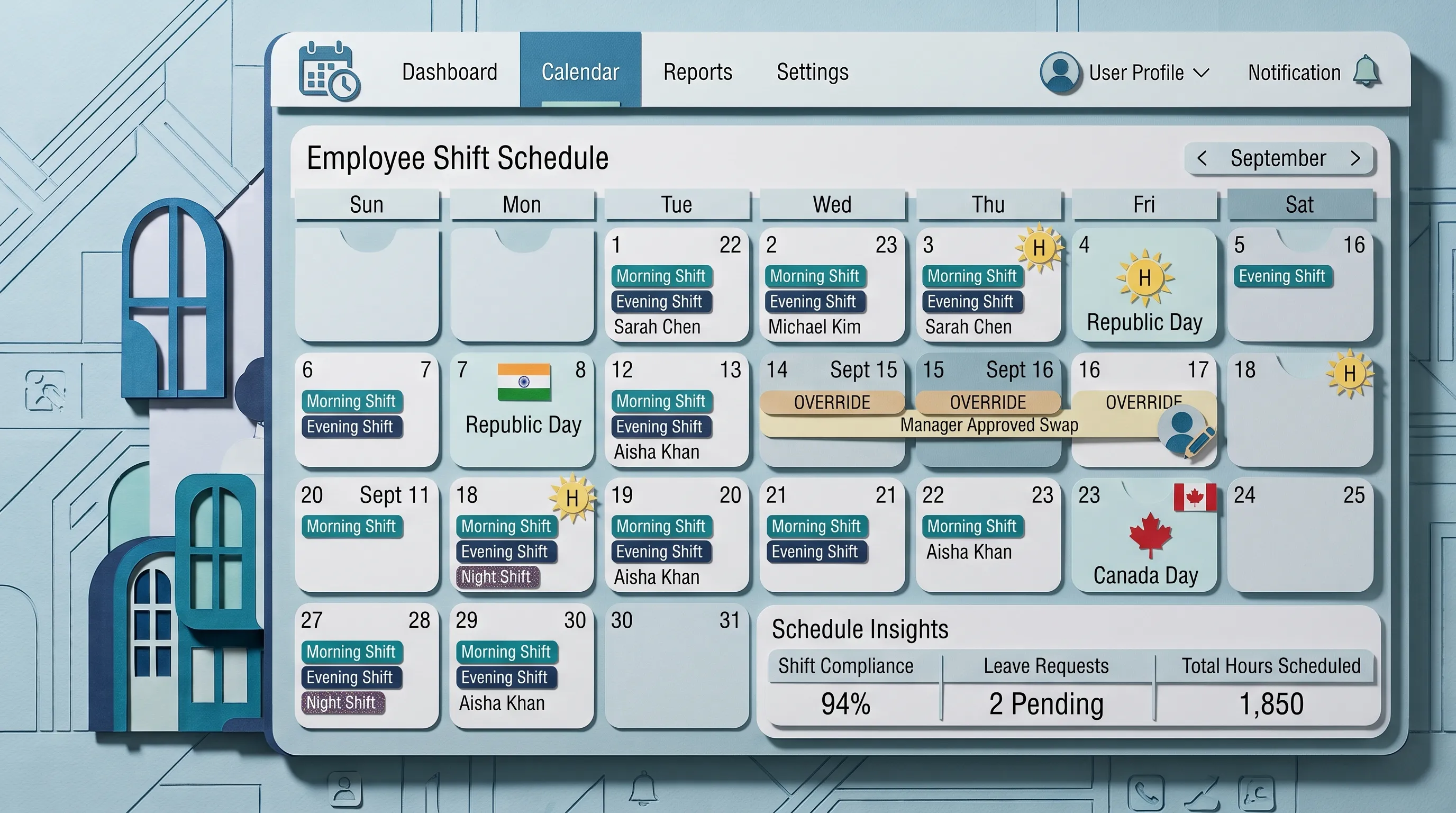
You define shifts with a name (Morning, Night, Split, whatever), start and end times, and grace periods. The late grace period is the one that matters most in practice — if your shift starts at 9:00 and grace is 5 minutes, an employee checking in at 9:04 is on time but 9:06 is late. Getting this right saves you from a lot of complaints.
There's also an "earliest check-in time" per shift, which stops the system from accepting a 5 AM check-in for a 9 AM shift. Without this, you'd have employees punching in ridiculously early to game the punctuality metrics.
For temporary changes — Ramadan schedules, winter hours, one-off accommodations — use shift overrides. You assign a different shift to specific employees for a date range, and their regular shift kicks back in automatically when the override expires.
Holidays are centralized in a calendar. Mark them as National, Festival, Religious, or custom types. The system uses this to skip absent-marking on holidays and to exclude them from leave day calculations.
What It Costs (Actually Nothing, Seriously)
I know "free" gets thrown around loosely in software. Here's the deal with OpenHR.
You get a 14-day ad-free with every feature unlocked. After that, three paths:
Keep it free with ads. The system shows small banner ads in non-critical areas (sidebar, bottom of dashboard). Nothing during attendance punching, nothing in modals, nothing that blocks your workflow. For most small organizations, this is the pragmatic choice.
Support the project. Donation tiers from $5 (3 months ad-free) to $50 (lifetime). Processed through Ko-fi, Buy Me a Coffee, or PayPal. This keeps development going and is honestly how we pay for hosting the landing page and demo server.
Ask for more trial time. If you're mid-rollout and need more evaluation time, request a 7, 14, or 30-day extension. We approve these pretty liberally — we'd rather you take your time and adopt it properly than rush and have a bad experience.
There are no per-user fees. No enterprise tiers. No "contact sales" pricing pages.
Data Privacy and Security
Since you're self-hosting, security is your responsibility — but that also means you're in control.
All employee data lives in your Supabase project. Selfies, GPS logs, personal info, salary data — it's all on your server. The only external service OpenHR talks to is OpenStreetMap's Nominatim API for converting GPS coordinates into human-readable addresses, and that's a simple lookup — no employee data is transmitted.
Supabase provides encryption at rest, audit logging, and configurable backup policies out of the box.
Role-based access control is enforced at the API level, not just the UI. Even if someone inspected the frontend code and tried to call APIs directly, Supabase's Row-Level Security policies block unauthorized access. Employees can only read their own records. Managers can only see their team. Only Admin and HR have org-wide access.
Uploaded images (selfies, avatars, logos) are automatically converted to WebP format to keep storage manageable. When you have 200 employees punching in with selfies every day, those files add up fast. WebP compression helps a lot.
Who This Is Really Built For
I'm not going to pretend OpenHR is for everyone. It won't replace Workday for a 10,000-person enterprise, and it doesn't have payroll or applicant tracking (yet).
But if you recognize yourself in any of these, it's probably worth trying:
- You have 50 to 500 employees and your current "system" involves Excel, paper registers, or WhatsApp groups
- You're tired of buddy punching and want photo-verified attendance without buying fingerprint hardware
- You have multiple locations — offices, factories, field sites — and need to know where people are when they clock in
- You care about data privacy and don't want employee records on a third-party cloud you can't audit
- Your leave approval process is currently "email your manager and hope they remember"
- You want proper performance reviews but the enterprise tools cost more than the problem is worth
It works well for garments factories, IT companies, NGOs, schools, construction firms, and basically any mid-size organization that needs real HR infrastructure without the enterprise tax.
Frequently Asked Questions
Q: Is OpenHRApp really free?
A: Yes. After the 14-day trial, you can keep using it free with ads, or donate for ad-free access. No per-user fees, no premium tiers, no credit card required.
Q: Do I need a server to run OpenHRApp?
A: No. Use Supabase cloud (free tier) and you're set. For self-hosting, Supabase Docker deployment is also supported. Both options work with the same setup steps.
Q: Can I migrate from PocketBase to Supabase?
A: Migration scripts are available in the repo under scripts/migrate-from-pb/. The migration covers users, attendance, leaves, reviews, and all settings.
Q: What happens to my data if I stop using OpenHRApp?
A: Your data stays in your Supabase project — you keep full access. Export anytime via the Supabase dashboard or API.
Wrapping Up
OpenHR does four things and tries to do them well: attendance tracking with real verification, leave management with flexible approval workflows, performance reviews backed by actual data, and an employee directory with proper access control. It doesn't try to be a Swiss Army knife for every HR function imaginable.
If you are ready to dive deeper into specific areas, we have dedicated guides for each major feature:
- Getting Started with OpenHRApp: A Step-by-Step Setup Guide — Walk through organization setup, employee provisioning, and policy configuration.
- How Selfie-Based Attendance Works in OpenHRApp — Deep dive into the check-in flow, GPS verification, audit trails, and troubleshooting.
- Managing Employee Leave with OpenHRApp — Leave applications, multi-level approvals, balance tracking, and team calendars.
- A Guide to OpenHRApp's Performance Review Module — Competency frameworks, multi-stage evaluations, and integrated attendance data.
- OpenHRApp Reports and Analytics — Attendance summaries, leave analytics, interactive charts, and CSV exports.
You can also check out all OpenHRApp features to see everything in one place before committing.
OpenHR is open source under the MIT License. Code, issues, and contributions live on GitHub.