How Selfie-Based Attendance Works in OpenHRApp
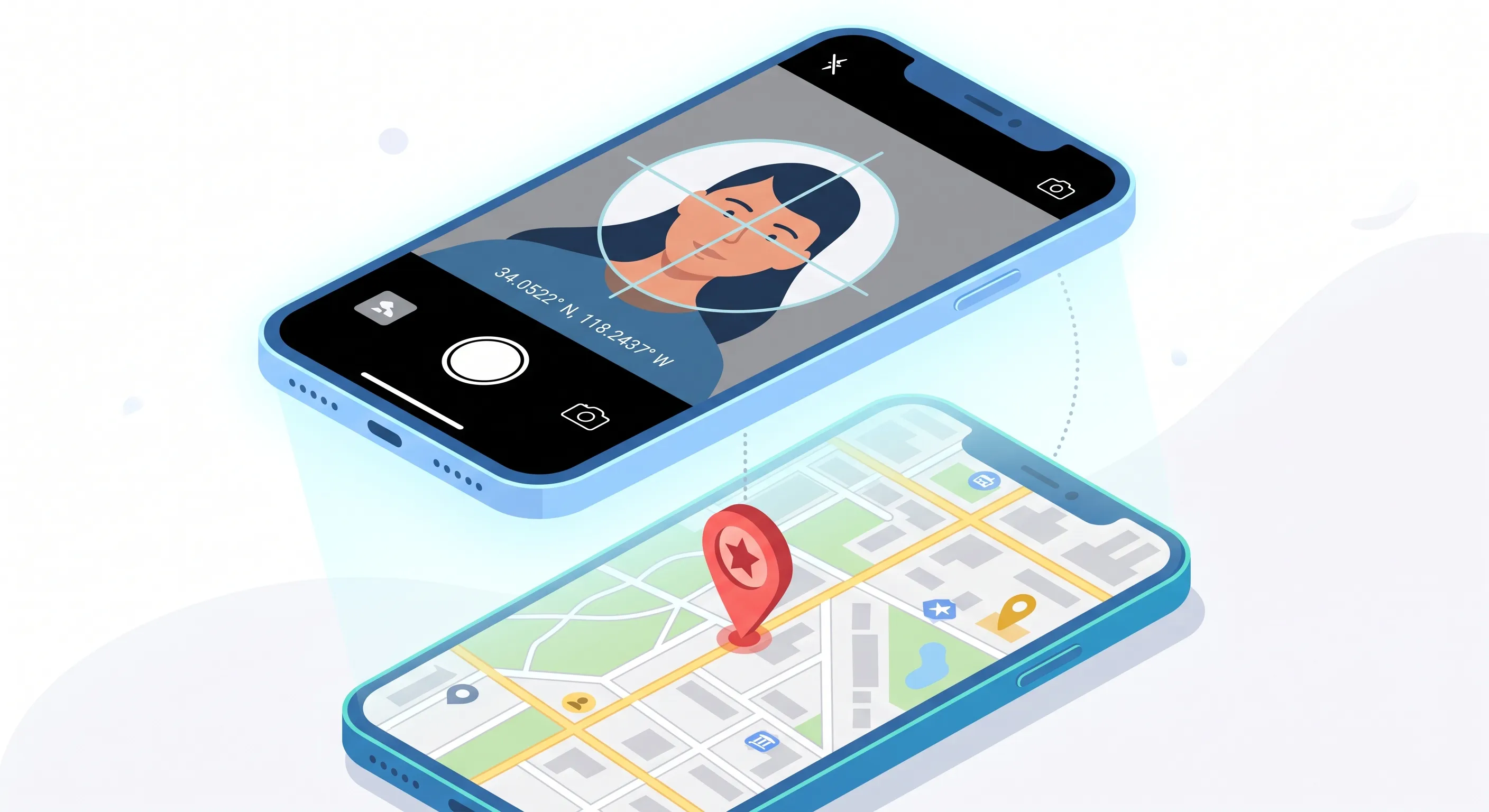
One of OpenHRApp's standout features is selfie-based attendance tracking. Instead of fingerprint scanners, RFID cards, or old-school punch clocks, employees simply take a selfie using their phone — and the system captures their photo, GPS location, and timestamp all together. This guide explains exactly how it works under the hood and how to use it effectively.
The Check-In Flow
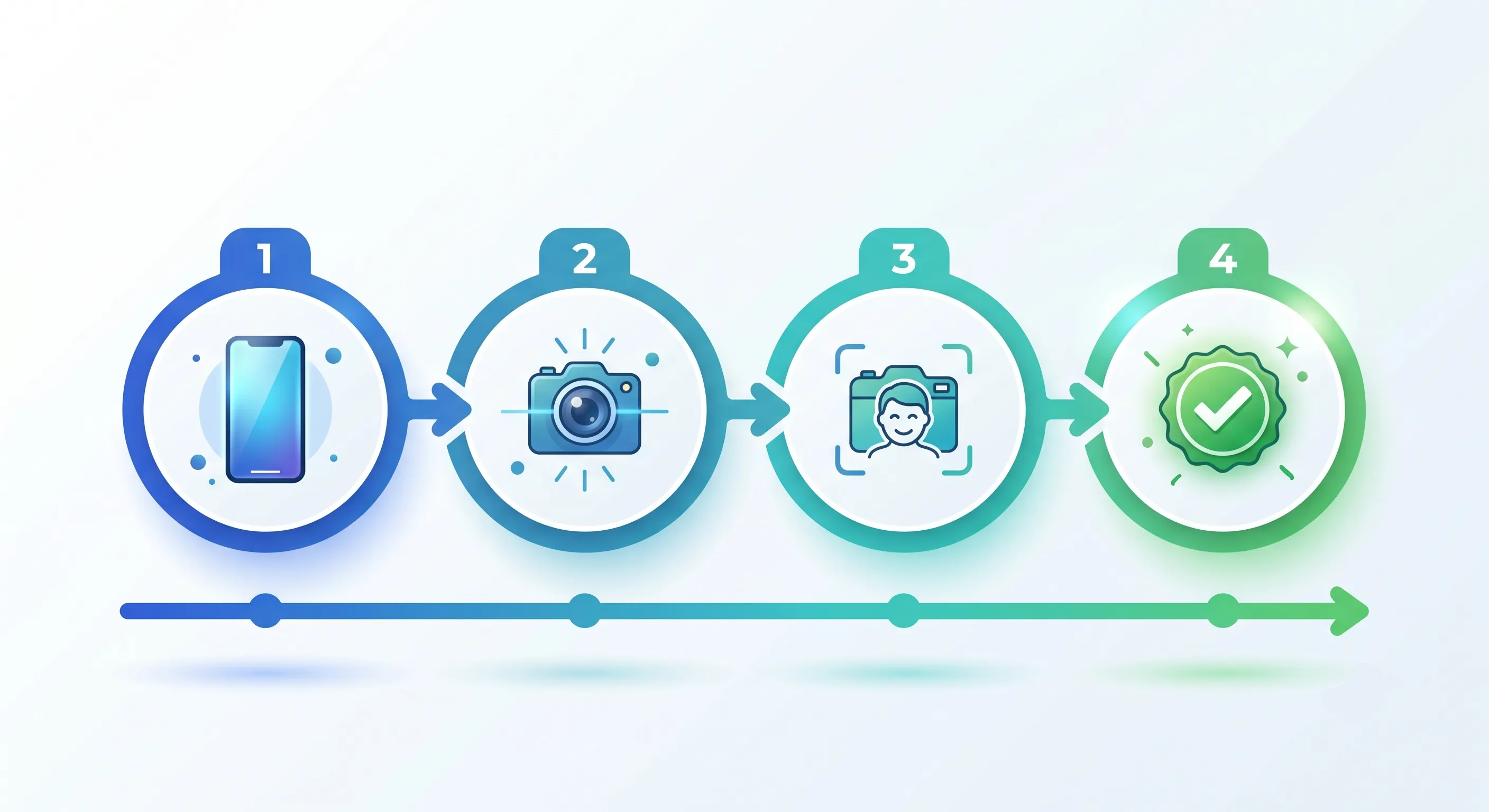
When an employee arrives at work, here is what happens step by step:
Open the app — On any device (phone, tablet, or laptop), the employee navigates to the Attendance page.
Choose the duty type — Depending on your organization's configuration, the employee selects their work type: Office (standard check-in) or Factory (shift-based check-in).
Camera activates — The app requests access to the device's camera. On first use, the browser will ask for camera permission. The employee grants permission once, and the camera activates automatically on future check-ins.
Take the selfie — The employee positions their face in the frame and captures the photo. The photo is automatically converted to WebP format for efficient storage.
GPS capture — Simultaneously, the app captures the device's GPS coordinates (with the employee's permission). This records where the check-in occurred.
Timestamp — The exact date and time are recorded server-side to prevent manipulation.
Check-in complete — The employee sees a confirmation that they are checked in, and the record is stored in the attendance database.
The entire flow takes about 5–10 seconds from opening the app to completing the check-in.
Check-Out Flow
At the end of the workday (or shift), the employee returns to the Attendance page and taps Check Out. The system:
- Captures another selfie for identity verification.
- Records the checkout timestamp.
- Calculates the total work duration.
- Closes the attendance session.
If an employee forgets to check out, OpenHR's auto-close mechanism kicks in. At a configured time (e.g., 10 PM), any open attendance sessions are automatically closed with a system note, and the employee is notified.
Identity Verification: How It Prevents Buddy Punching
Buddy punching — when a colleague checks in for an absent employee — is one of the most common forms of time theft. Selfie verification makes it virtually impossible because:
- Every check-in requires a photo. The photo is captured live through the camera — it cannot be uploaded from the device gallery in standard mode. This ensures the photo is taken at the moment of check-in.
- Photos are stored with each attendance record. Managers and HR can visually verify who checked in. If John's attendance record shows a photo of Sarah, it is immediately obvious.
- No shared credentials. Unlike PIN codes or swipe cards, a selfie cannot be shared or lent to a colleague.
Privacy Safeguards
Selfie verification is not facial recognition. OpenHR does not process or analyze facial features. The photo is stored as evidence for manual verification by authorized personnel only. Specifically:
- Photos are only visible to managers and HR/Admin — not to other employees.
- Photos are stored securely alongside attendance records with the same access controls.
- No biometric data is extracted or stored. The photo is simply an image file.
GPS Location Verification
Every check-in captures the device's GPS coordinates. This serves multiple purposes:
- On-site verification — Confirms that office-based employees are checking in from the office location, not from home.
- Field worker tracking — Verifies that field workers are at their assigned job sites or client locations.
- Remote work monitoring — Shows where remote employees are working from on any given day.
The GPS data is displayed in the attendance logs as coordinates and, where available, as a reverse-geocoded address (e.g., "123 Main Street, Dhaka"). Managers can view check-in locations on a map for visual verification.
Important: GPS is only captured at the moment of check-in (and check-out, if configured). OpenHR does not track employee location continuously throughout the day. The purpose is verification, not surveillance.
Attendance Modes: Office vs. Factory
OpenHR supports two distinct attendance modes to accommodate different work environments:
Office Mode
Designed for standard office environments with regular business hours. Key characteristics:
- Employees check in once at the start of the day and check out once at the end.
- Lateness is calculated against the employee's assigned shift start time (minus any grace period).
- Work duration is calculated from check-in to check-out.
- Ideal for knowledge workers, administrative staff, and management.
Factory Mode
Designed for manufacturing, production, and shift-based environments. Key characteristics:
- Supports multiple shifts throughout the day (morning, afternoon, night).
- Employees check in at the start of their shift and check out at the end.
- Overtime is calculated automatically for work beyond the scheduled shift end.
- Supports split shifts and rotating schedules.
- Ideal for factory workers, warehouse staff, and operations teams.
Admins can configure which modes are available to their organization and assign specific modes per employee or per department.
The Audit Trail
Every attendance event creates an auditable record containing:
- Employee ID and name
- Date and time of check-in (server-verified)
- Date and time of check-out (if applicable)
- Selfie photo
- GPS coordinates
- Duty type (Office or Factory)
- Status (Present, Late, Absent, etc.)
- Any remarks or overrides
This data is stored in a structured database and can be exported to CSV for payroll processing, compliance audits, or further analysis. All records are immutable — once an attendance session is closed, it cannot be silently edited. Manual adjustments by admins are logged with the admin's identity, timestamp, and reason.
Troubleshooting Common Issues
Camera Not Working
If the camera fails to activate:
- Ensure the browser has camera permission. Check the browser's site settings.
- On iOS, make sure you are using Safari (PWA mode) — some third-party browsers have limited camera access.
- Try the gallery upload fallback: in environments where live camera access is blocked, OpenHR allows uploading a recently taken photo as an alternative (this is configurable by the admin).
GPS Not Available
If GPS cannot be determined:
- Ensure location services are enabled on the device.
- Grant location permission to the browser when prompted.
- On desktop, GPS may be less accurate or unavailable. Desktop check-ins will record the best available location (often based on IP geolocation) and flag the record accordingly.
"Already Checked In" Error
This occurs when an employee tries to check in twice without checking out in between. The employee should check out first before starting a new session. If the previous check-out was missed, an admin can manually close the previous session.
Setting Up Attendance for Your Organization
To configure attendance for your team:
- Configure shifts — Go to Organization > Shifts. Define your shifts with start/end times, grace periods, and working days.
- Assign shifts to employees — In the Employee Directory, assign each employee to their appropriate shift.
- Configure auto-close time — Go to Organization > System and set the auto-session-close time. This should be after the latest possible shift end time.
- Set up holidays — Go to Organization > Holidays and add your holiday calendar. Employees will not be marked absent on holidays.
- Test with a pilot group — Have a small group of employees test the check-in/check-out flow before rolling out to the entire organization.
Conclusion
Selfie-based attendance tracking gives you biometric-level identity verification without any dedicated hardware. It eliminates buddy punching, provides location verification, and creates a complete audit trail — all from the smartphone your employees already carry. Combined with flexible shift support and automatic absence detection, it is a complete attendance management solution that costs nothing to use.
Further Reading
- The Complete Guide to Employee Attendance Tracking — Compare selfie-based check-in against paper, biometric, RFID, and spreadsheet methods.
- Employee Privacy in the Age of Workplace Surveillance — How OpenHR balances identity verification with employee privacy.
- Remote Work and HR: Adapting Your Policies for a Distributed Workforce — How selfie + GPS attendance works for distributed and hybrid teams.
OpenHRApp's attendance system is completely free, with no limits on employees, check-ins, or storage. Start tracking attendance today.