Managing Employee Leave with OpenHRApp
OpenHRApp's leave management system handles the entire lifecycle — from application to approval to balance tracking — with minimal administrative overhead. This guide walks through how each role uses the leave system and how to configure it for your organization.
For Employees: Applying for Leave
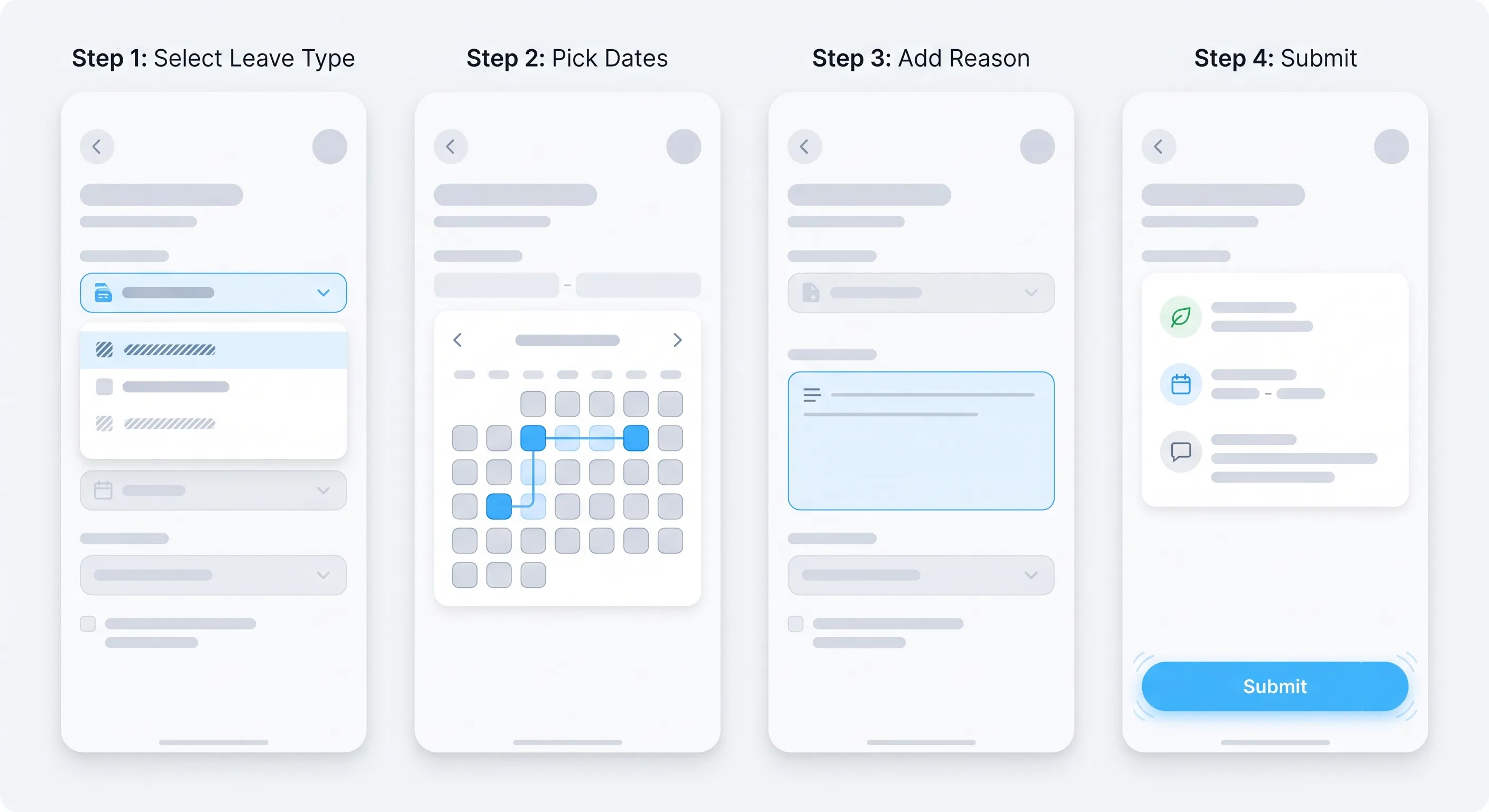
The leave application process is designed to take less than a minute. Here is how it works:
- Navigate to Leave from the sidebar.
- You will see your leave dashboard, which displays your current balances for each leave type, your recent leave history, and the team calendar.
- Click Apply for Leave to open the application form.
- Fill in:
- Leave Type — Select from the types your organization has configured (Annual, Sick, Casual, etc.).
- Dates — Choose your start and end dates using the date picker. The system automatically calculates the total number of days, excluding weekends and holidays.
- Half-Day Option — If you only need a half day, toggle this option and select morning or afternoon.
- Reason — Optional but recommended. A brief note helps your manager understand the context.
- Submit the application.
You will receive an email confirmation that your application has been submitted. You can track the status of all your applications from the Leave page.
Checking Your Leave Balance
Your leave dashboard shows, for each leave type:
- Total allowance — Your annual entitlement.
- Used days — How many days you have taken this year.
- Remaining days — How many days you still have available.
This updates in real time — when a leave request is approved, your balance is deducted automatically.
Canceling a Leave Request
If your plans change, you can cancel a pending or approved leave request from the Leave page. Canceling an approved request restores the days to your balance and removes the absence from the team calendar.
For Managers: Approving or Rejecting Leave
Managers receive an email notification when a team member submits a leave request. The email includes the employee's name, leave type, dates, and reason — everything needed to make a decision in seconds.
From the Leave page, managers can:
- View pending requests — All leave requests awaiting your approval are listed at the top.
- Check team availability — The team calendar shows who else is on leave during the requested dates. This helps you identify potential coverage gaps before approving or rejecting.
- Approve or reject — One click to approve, or reject with an optional remark explaining why (e.g., "Two other team members are already on leave that week. Could you reschedule to the following week?").
The employee is notified immediately of your decision.
Best Practices for Managers
- Respond within 24 hours. Employees often need to make plans around leave approvals. A quick response shows respect for their time.
- Use rejection remarks constructively. If you must reject a request, explain why clearly and suggest alternatives if possible.
- Check the calendar before approving. A brief glance at team availability prevents the awkward situation of discovering a coverage gap after approving.
For HR/Admin: Configuring Leave Policies
HR administrators have full control over the leave system. All configuration is done from the Organization page.
Setting Up Leave Types
Go to Organization > Leaves. Here you can:
- Add, edit, or remove leave types — Customize the list to match your organization's actual policies.
- Configure annual allowances — Set the default number of days per year for each leave type.
- Enable or disable balance tracking — Some leave types (like Maternity Leave or Bereavement Leave) may not need a tracked balance — they are granted as needed.
- Set carry-over rules — For leave types with tracked balances, specify whether unused days carry over to the next year, and if so, the maximum number of days that can be carried over.
Managing Leave Workflows
Go to Organization > Workflow to configure how leave requests are routed:
- Department-level settings — For each department, specify the approver role: Manager (the employee's direct manager approves) or HR/Admin (skip the manager, go directly to HR).
- Manager bypass — If an employee does not have a line manager assigned, their requests automatically go to HR/Admin.
- Auto-approval — For certain leave types (like Casual Leave under 2 days), you can configure auto-approval to skip the manual review entirely.
Leave Balance Overrides
If individual employees have different leave allowances (e.g., a senior executive with extra annual leave, or a part-time employee with prorated leave), you can set per-employee overrides. These override the default allowance for the selected leave types.
Leave Reports
HR can generate leave reports from the Reports page:
- Leave utilization by employee — How many days each employee has taken, organized by leave type.
- Leave utilization by department — Which departments are using the most leave? Are there patterns of high leave usage that might indicate workload or morale issues?
- Leave balance summary — Remaining balances for all employees, useful for year-end planning.
- Export to CSV — All reports can be exported for payroll processing or further analysis.
The Team Calendar
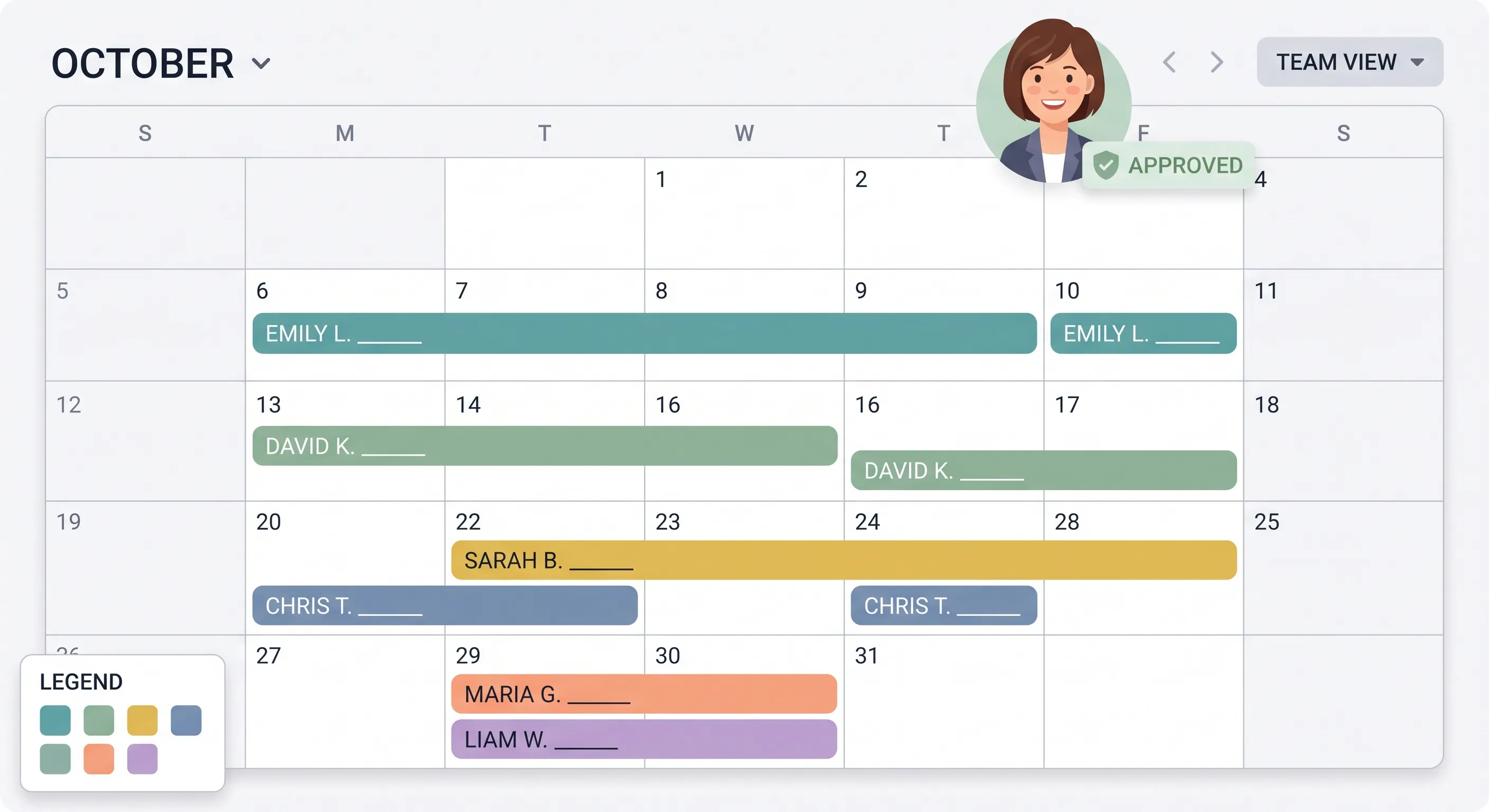
The team calendar provides a visual overview of who is on leave and when. Each approved leave appears as a colored bar spanning the leave dates. The calendar shows:
- Employee name (but not leave type or reason — maintaining privacy).
- Date range of the absence.
- Color coding by leave type (optional, configurable).
Managers and HR see the calendar for their team or the entire organization. Employees see their own approved leave and, optionally, their team members' leave dates.
The calendar is particularly useful for:
- Spotting coverage gaps before they happen.
- Planning project timelines around team availability.
- Identifying patterns (e.g., multiple people in the same team taking leave during the same week every month).
Handling Special Leave Scenarios
Leave Spanning Weekends and Holidays
When an employee selects a date range, OpenHR automatically calculates the number of working days — excluding weekends and holidays. For example, if an employee takes Monday through the following Monday (8 calendar days) and the weekend falls in between, only 6 working days are deducted from their balance.
Half-Day Leave
Employees can request half-day leave (morning or afternoon). This is handled as 0.5 days for balance calculations. Half-day leave is useful for medical appointments, school events, or other short-duration personal needs.
Multi-Level Approvals
For organizations that require both manager and HR approval, the workflow is sequential:
- Employee submits → Manager reviews.
- Manager approves → HR reviews.
- HR approves → Leave is confirmed.
At each step, all relevant parties are notified by email.
Leave During Notice Period
When an employee is serving their notice period, leave requests may follow different rules (e.g., requiring HR approval regardless of the standard workflow). OpenHR supports role-based routing rules that can be configured to handle this scenario.
Conclusion
OpenHR's leave management system handles the entire leave lifecycle — from one-click employee applications to automated balance tracking to comprehensive HR reporting. It adapts to your organization's policies, not the other way around. And like everything in OpenHR, it is completely free.
Further Reading
- Leave Management Best Practices for Growing Teams — Design leave policies that scale: accruals, carry-over, team calendars, and multi-department rules.
- Getting Started with OpenHRApp: A Step-by-Step Setup Guide — Configure your organization's leave types, workflows, and policies from scratch.
Set up your leave policies in OpenHRApp today. Free, no limits, no per-user fees. Get started.