A Guide to OpenHRApp's Performance Review Module
OpenHRApp's performance review module enables structured, multi-stage evaluations with customizable competencies and rating scales. Whether you are running annual appraisals, quarterly check-ins, or probation reviews, this guide walks you through the complete process.
Overview of the Review Lifecycle
A performance review in OpenHR follows a defined lifecycle:
- Draft — The review cycle is created but not yet active.
- Self-Assessment — Employees rate themselves on each competency and provide written reflections.
- Manager Review — The direct manager evaluates the employee, provides feedback, and assigns ratings.
- HR Finalization — HR reviews all evaluations, calibrates ratings across the organization, and finalizes the reviews.
At each stage, automatic email notifications keep everyone informed of deadlines and pending actions.
Step 1: Configure Your Organization's Review Settings
Before creating your first review cycle, configure the organization-wide review settings. Go to Organization > Structure (or the dedicated Review Config section).
Competencies
Define the competencies that will be evaluated across all review cycles. Competencies are the skills, behaviors, and values you want to assess. Each competency has:
- Name — A short, descriptive label (e.g., "Collaboration," "Technical Expertise," "Problem-Solving").
- Description — A clear explanation of what the competency means in your organizational context. This description is visible to both employees and managers during the review.
OpenHR comes with six default competencies — Agility, Collaboration, Customer Focus, Developing Others, Global Mindset, and Innovation Mindset — but you can customize these completely. Add, remove, or rename competencies to match what matters to your organization.
Tip: Keep your competency list to 5–8 items. Too many competencies make reviews tedious and unfocused.
Rating Scale
Configure the rating scale that will be used across all competencies. The default is a 5-point scale:
- Needs Improvement
- Developing
- Meets Expectations
- Exceeds Expectations
- Outstanding
You can customize the number of levels (3-point, 4-point, 7-point) and the label for each level.
Step 2: Create a Review Cycle
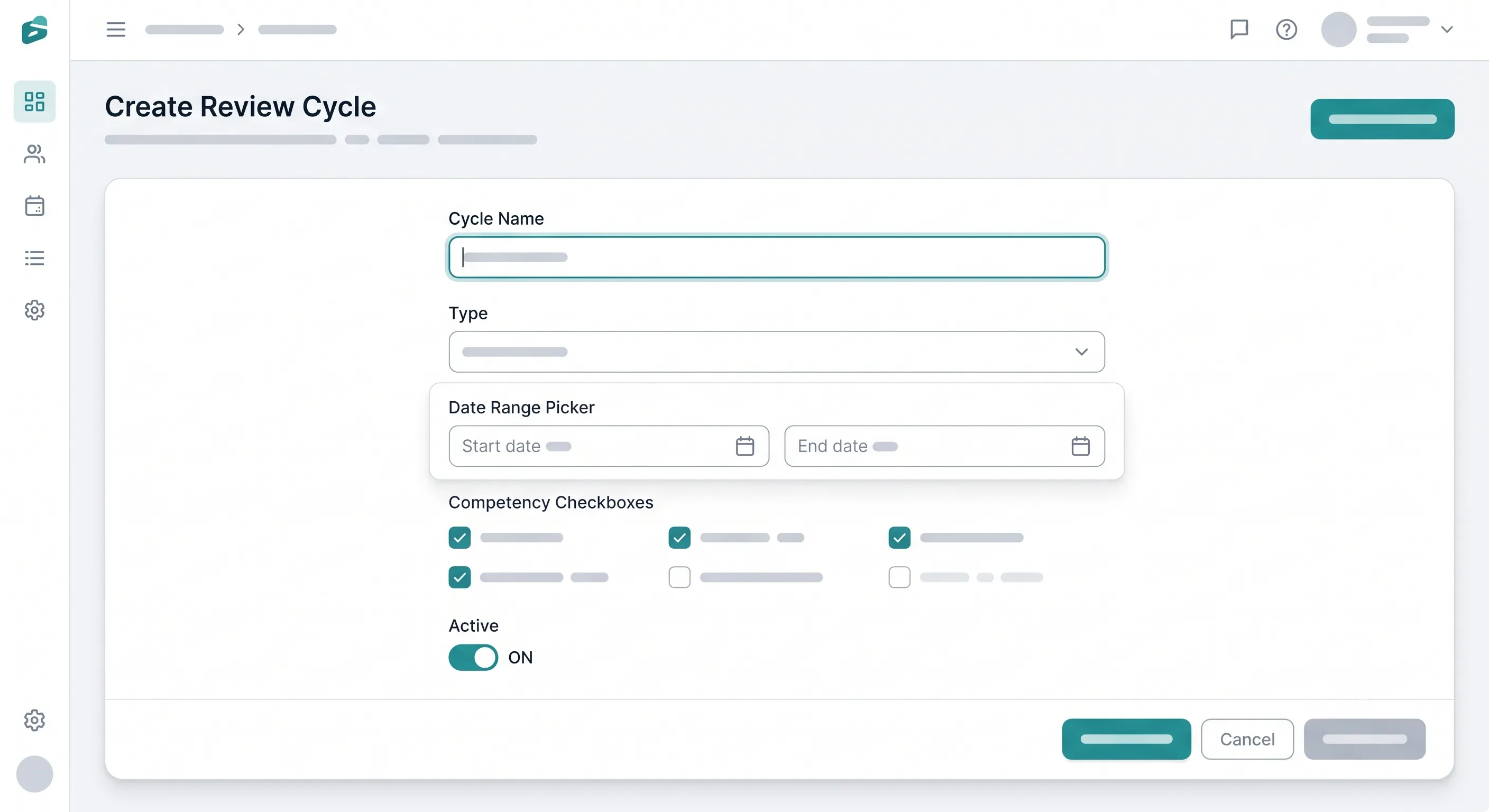
Go to the Performance Review section from the sidebar and create a new review cycle. You will need to define:
- Cycle Name — A descriptive name (e.g., "2026 Annual Review," "Q3 2026 Quarterly Check-In").
- Cycle Type — Choose from Annual, Semi-Annual, Quarterly, or Probation.
- Cycle Period — The date range the review covers (e.g., January 1 – December 31, 2026). This determines which attendance and leave data is pulled into the review.
- Review Period — The window during which reviews are completed (e.g., January 1–31, 2027). Deadlines for self-assessment and manager review are set within this period.
- Selected Competencies — Choose which competencies from your configured list apply to this cycle. Different cycles can evaluate different competencies.
- Active Status — Toggle whether the cycle is active. Employees can only see and participate in active cycles.
Once created, the cycle automatically notifies employees and managers that a new review period has begun.
Step 3: Self-Assessment (Employee)
When a review cycle is active, employees see their pending self-assessment on their Performance Review page.
The self-assessment form displays:
- Each competency with its description.
- The rating scale for reference.
- A text area for written self-reflection.
For each competency, employees rate themselves and provide written comments. The self-assessment gives employees a voice in the evaluation process and highlights gaps between self-perception and manager perception.
Best practices for employees:
- Be honest. Over-rating yourself undermines credibility; under-rating yourself does not help your case.
- Provide specific examples. Instead of "I collaborate well," write "I led the cross-functional project with Engineering and Marketing to launch the Q3 feature on schedule."
- Use the self-assessment as an opportunity to highlight accomplishments your manager may not be aware of.
After submitting, the self-assessment is locked (no further edits) and the manager is notified that their review is ready.
Step 4: Manager Evaluation
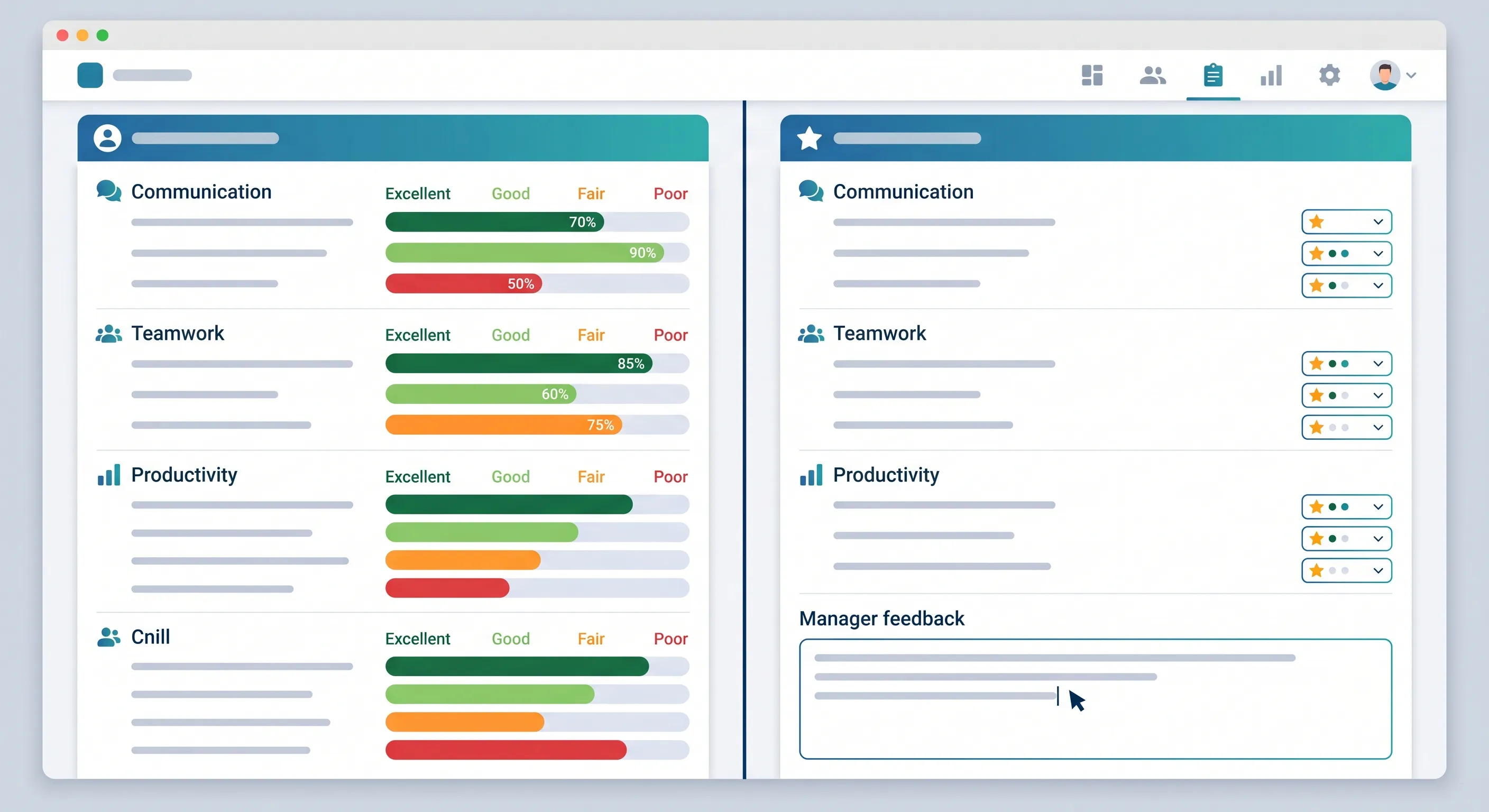
Managers see all pending reviews for their direct reports. The manager evaluation screen shows:
- The employee's self-assessment (ratings and comments) — side by side with the manager's evaluation form.
- Attendance summary for the review period — total days present, absent, and late.
- Leave summary for the review period — total days taken by type.
For each competency, the manager provides:
- Rating — Their independent assessment of the employee's performance.
- Written feedback — Specific observations, examples, and guidance.
The side-by-side layout is intentional: it makes gaps between self-assessment and manager evaluation immediately visible, which often leads to the most productive conversations.
Best practices for managers:
- Base ratings on evidence, not impressions. Refer to specific projects, outcomes, and behaviors observed during the review period.
- For any rating below "Meets Expectations," provide concrete, actionable guidance on what improvement looks like.
- Do not save critical feedback for the review — it should have been discussed throughout the year. The review summarizes and documents.
- Submit the review before the deadline. Late reviews signal to employees that their development is not a priority.
After the manager submits their evaluation, the review moves to HR for finalization.
Step 5: HR Finalization
HR sees all reviews that have completed the manager evaluation stage. The HR finalization screen provides:
- A summary view of all reviews in the cycle, organized by department.
- Rating distributions — are certain managers systematically rating higher or lower than others?
- The ability to add final remarks and an overall rating that may differ from the manager's ratings (for calibration purposes).
HR's role in finalization is to ensure consistency and fairness across the organization. If one manager has rated all their reports as "Outstanding" while another manager in the same department has a more balanced distribution, HR may adjust ratings after discussion with the managers.
After HR finalizes a review, the employee is notified and can view their completed evaluation.
Viewing Review History
Both employees and managers can view historical reviews at any time. The review history shows:
- All completed reviews for the employee, organized by cycle.
- Ratings trends over time — is performance improving, stable, or declining?
- Written feedback from previous cycles, providing context for current evaluations.
This longitudinal view is particularly valuable during promotion discussions, succession planning, and identifying high-potential employees.
Use Cases for Different Review Types
Annual Performance Review
The traditional year-end appraisal. Best for organizations with stable roles and clear, long-term performance expectations. Covers the full calendar or fiscal year.
Semi-Annual Review
Two reviews per year (mid-year and year-end). Provides more frequent feedback and allows for mid-year course correction. Reduces the "recency bias" problem of annual reviews.
Quarterly Check-In
Four lightweight reviews per year. Best for fast-paced organizations where goals and priorities shift frequently. Each quarterly review should be shorter than an annual review — focus on 3–5 key competencies.
Probation Review
Evaluates a new hire at the end of their probation period (typically 3–6 months). Focuses on onboarding progress, cultural fit, and initial performance. The probation review determines whether employment is confirmed.
Tips for a Successful Review Cycle
- Announce the cycle early — Give employees at least 2 weeks notice before the self-assessment deadline.
- Set realistic deadlines — Allow at least 1–2 weeks for self-assessment and 1–2 weeks for manager evaluation.
- Train managers — Run a brief session on how to rate consistently, provide constructive feedback, and handle difficult conversations.
- Monitor progress — HR should check completion rates regularly and send reminders to anyone who is behind.
- Calibrate before finalizing — Hold a calibration meeting with managers to align rating standards before HR finalization.
- Follow up — After reviews are completed, schedule development conversations. The review is the starting point, not the end.
Conclusion
OpenHR's performance review module provides everything you need to run fair, consistent, and data-driven evaluations — from customizable competencies to multi-stage workflows to integrated attendance and leave data. Whether you are a small team running your first review cycle or a growing organization scaling your performance management process, the tools are ready.
Further Reading
- Building a Performance Review Process That Actually Works — General best practices for designing review cycles, competencies, and rating scales.
- OpenHRApp Reports and Analytics: Making Data-Driven HR Decisions — Pull attendance and leave data into reviews and track performance trends over time.
Set up your first performance review cycle in OpenHRApp today — completely free. Start here.